How to create a QR code
Make a QR code in under a minute, then follow a few simple rules so it scans every time.
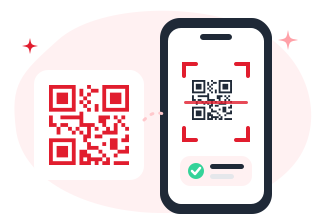
From idea to scannable in under a minute
- 1
Choose a type
Website, WiFi, business card, PDF… pick what happens when someone scans.
- 2
Make it yours
Add your content, then brand it with colors, dot shapes and your logo.
- 3
Download & share
Grab a crisp PNG or an infinitely scalable SVG for print.
Tips for QR codes that always scan
Most scanning problems come down to contrast, size and testing.
Keep strong contrast
Dark dots on a light background scan best. Avoid light colors on white and inverted codes on busy photos.
Leave a quiet zone
Keep a clear margin around the code. Text or graphics touching the edges make it harder to read.
Print it big enough
At least 2 cm (0.8 in) wide, or a tenth of the scanning distance. Use SVG so print stays sharp.
Keep logos small
A logo can cover part of the code thanks to error correction, but keep it to the center.
Test before printing
Scan the downloaded file with a couple of phones, from the distance people will actually use.
Add a call to action
A short line like "Scan for the menu" tells people what they get and makes them more likely to scan.
PNG or SVG?
PNG is an image file that works everywhere: websites, documents, presentations and social media. Download the high-res version (2048 px) if you plan to print it.
SVG is a vector file. It scales to any size without getting blurry, which makes it the best choice for print shops, packaging and large signs.
Static or dynamic?
Static QR codes store your content directly. They are free, never expire and work without any account, but they can’t be changed once printed.
Dynamic QR codes point to a link you control, so you can change the destination and see scan statistics. Learn more about dynamic QR codes.
Ready for QR codes you can edit and track?
Join early access to dynamic QR codes. It's free to start.